


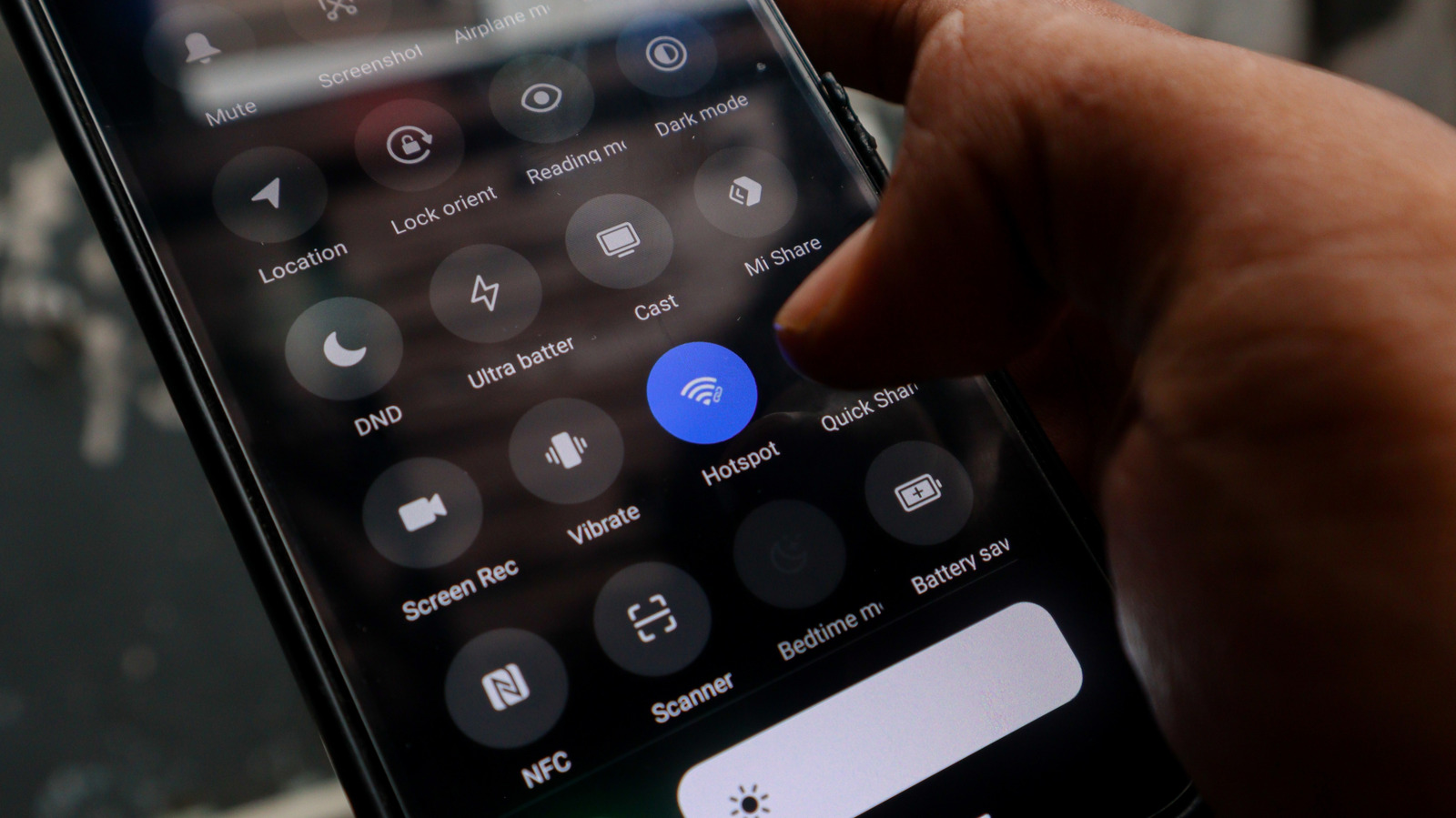
It’s a quick fix for that dead zone in your house.
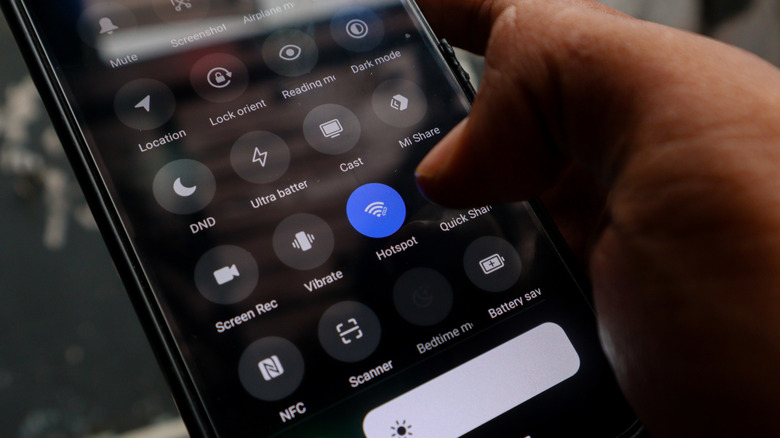
If you have an old Android phone gathering dust in a drawer somewhere, you may already have everything you need to fix the dead zones in your home Wi-Fi network. Instead of buying new hardware, be it an extender, a mesh node or a more powerful router, you could just use an old Android device.
Most households have at least one old Android phone sitting forgotten somewhere, too outdated to use as a daily driver, but too functional to justify throwing it away. Before you drop it off for recycling, you should consider what it can still do for you. With nothing more than its built-in settings and a power outlet, that phone can pull double duty as a Wi-Fi extender, helping push your home network’s signal into those room corners where signal is patchy at best.
You don’t need any special apps, extra hardware or even advanced technical know-how. Android’s built-in hotspot feature lets your phone connect to your existing Wi-Fi network and act as a repeater to broadcast it as a separate signal, thus extending coverage.
What does an Android Wi-Fi extender actually do?
If your home has areas where the internet signal is weak, it can be quite annoying. While it’s true that some things can be done — did you know there was a right way to position your router’s antennas? — it can be a nuisance until fixed. There are things you can buy, of course. Upgrading to a mesh system or getting a new router can be quite expensive, while a Wi-Fi extender can put you back about $50, depending on model. That’s still money you could simply not spend by making use of tech you already have.
Your Android phone can connect to your existing home Wi-Fi network and rebroadcast the signal as a separate hotspot. You can then connect other devices, from laptops to tablets and smart TVs, to that Wi-Fi signal instead. Think of it as a signal relay, as the phone picks up Wi-Fi from your router and simply passes it along to other devices that need it. It’s not a mesh system, and it won’t perform as one, but it’s a free and low-effort fix for weak coverage areas.
How to set up your Android phone as a Wi-Fi extender
The process for this whole operation is quite straightforward and only takes a few minutes. Our starting point comes after you’ve already located your old Android phone, recharged it and run the latest updates.
-
Open Settings, go to Network & Internet > Internet. Select your home Wi-Fi network and enter the password when prompted.
-
Go to Settings > Hotspot and Tethering and toggle on Wi-Fi Hotspot. You can also find the Hotspot icon in the drop-down menu — you just need to know what all those Android status bar icons mean.
-
Tap the Wi-Fi hotspot to rename the network and set a strong password to secure your network and keep it easy to identify.
-
If your phone supports it, you can select 5GHz under the speed or band settings. This will improve performance for nearby devices, but it offers a shorter range than 2.4GHz.
-
Place your phone about halfway between your router and the dead zone you’re worried about. Make sure it’s near an outlet so you can easily keep it recharged. Old phones already have questionable battery life, and running a hotspot continuously will drain the battery fast.
The downside of this method is that the phone extends your existing Wi-Fi, but it won’t boost your internet speed in any way. If your internet is already slow, the hotspot won’t fix that. You also have to keep in mind that any commercial Wi-Fi extender or mesh node will outperform this Android-based solution.
Another thing to keep in mind when using this method is that there’s no smart home integration to speak of. Dedicated Wi-Fi extenders often support smart home ecosystems and seamless roaming, while an Android hotspot creates a separate network, so some smart home devices may not connect to it reliably. Plus, you’ll need to manually switch networks as you move around your home.
Android phone vs. commercial alternatives: Which is better?
The answer to this question is one only you can deliver. Do you want to invest in your network at this point? An Android phone extender costs nothing, and it’s ideal as a temporary fix or supplementary solution for a single problem area. However, you’ll get much better range and performance from a commercial Wi-Fi extender, a mesh node or a new router. Go for the Android phone option if you need a quick fix and already have an unused device on hand. You could even try the USB tethering alternative for a more stable connection. It will make a surprisingly capable Wi-Fi extender for the right situation, the setup takes minutes, the cost is zero and it keeps a device out of the recycling bin. Just understand that this is a practical workaround, not a permanent network solution.
Read the original article here