


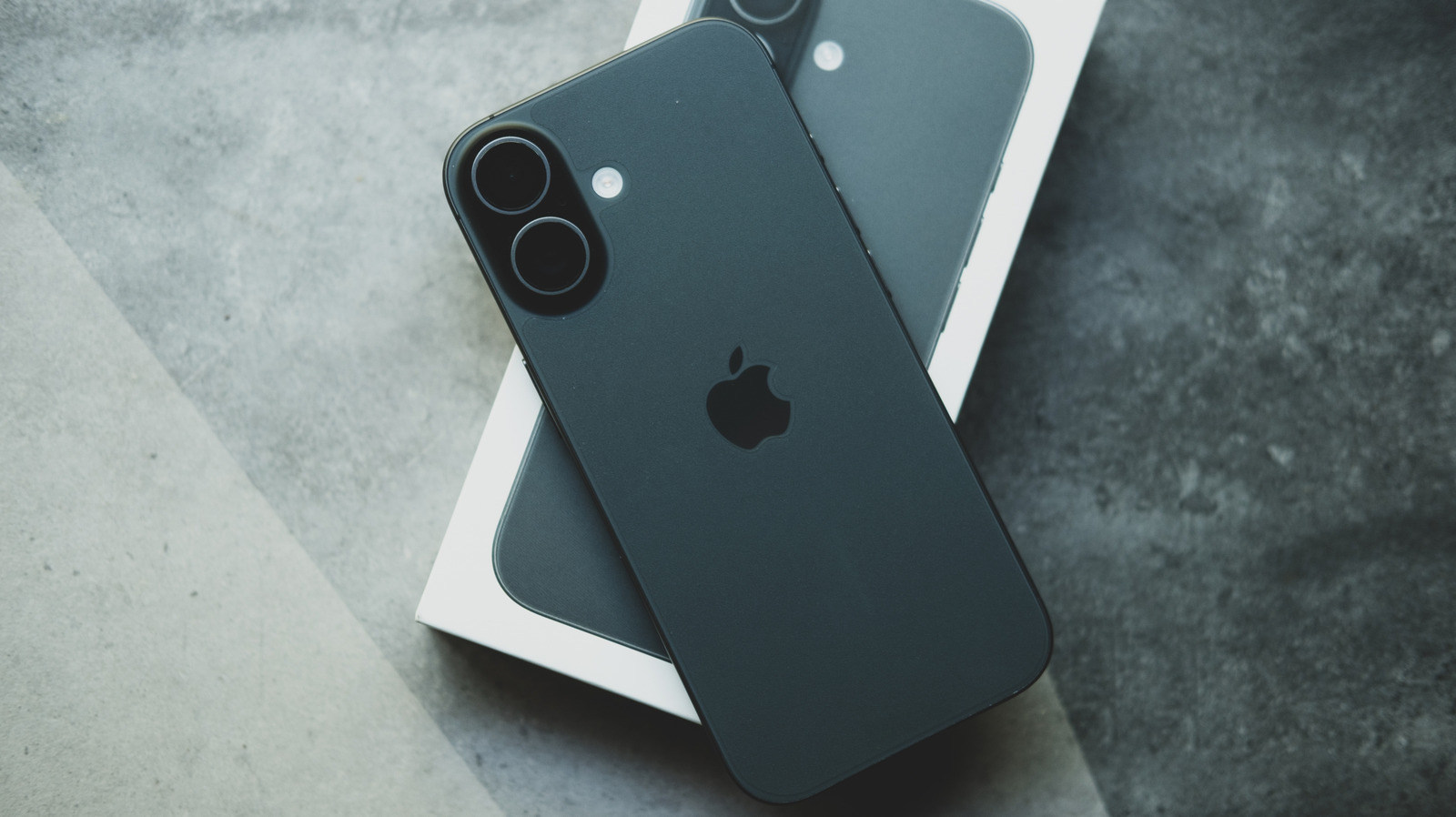
Changing your iPhone camera settings back to default is pretty simple, so long as you don’t mind flipping a few dozen toggles.
While it’s unlikely your iPhone will ever beat out a purpose-built camera, there’s a lot you can do to optimize its capture quality. Even an out-of-date iPhone will be chock-a-block with ways to take your photography and videography to the next level. However, sometimes the best way to measure that improvement is by going back to the basics of default settings.
There are many ways to improve your smartphone photography with any model, and iPhones are no different; there are thousands of great guides to help you choose the right settings for the pictures and videos you want. On the other hand, it can be hard to judge the change in quality if you’ve already spent a long time messing with your settings — or if you have a second-hand phone that arrived pre-muddled. Sometimes, it’s desirable to bring your camera back to default settings and build from there, but there’s no single button to carry out that reset. Luckily, it’s still relatively simple to set everything back to default.
The default iPhone camera settings
First things first, you’ll want to go from Settings to Camera, where you’ll find everything available to you laid out. Given how much the iPhone has changed in the last few years, this layout won’t be the same for every phone. Luckily, one thing that generally will be the same is the Preserve Settings option. Under this option are a number of toggles which, when turned off, automatically reset their given setting to default when you open the camera app. All of these toggles are initially turned off, save for the Live Photo toggle, meaning your camera already mostly returns to its original settings after you exit the application.
There are also further settings within this section that can be set back to a default state. Your frame rate for recording video should be 1080p at 30 fps (or 240 fps for Slo-mo), and should be the same for Cinematic recording if your phone supports the option. Further defaults include Stereo in Record Sound (or Spatial Audio on the iPhone 16 and above) and High Efficiency in the Formats section. Grid and Level shooting will also be turned off, while Smart HDR and Prioritise Faster Shooting should be turned on.
Default camera settings for iOS 26
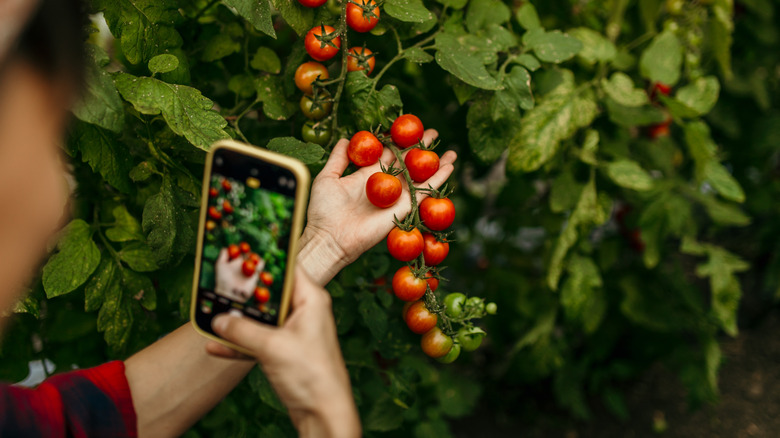
iPhones that can install iOS 26 have a few extra settings with their own defaults. For instance, Lens Correction, Macro Control, and Scene Detection should all start toggled on. Furthermore, the default resolution under Formats should be 24 MP. ProRAW & Resolution Control will also be off.
This is a lot to keep tabs on, of course, so there is a Hail Mary for those who don’t want to sift through a dozen toggles. If you navigate via Settings > Transfer or Reset iPhone, you can find the Reset options. There’s no option to just reset your camera settings, but you can reset all of your iPhone settings. This will remove any Apple Pay cards, keys and passes that you have, and bring all settings to their defaults, so only use this option if you’re absolutely sure and can switch back anything you don’t want as default.
Read the original article here