


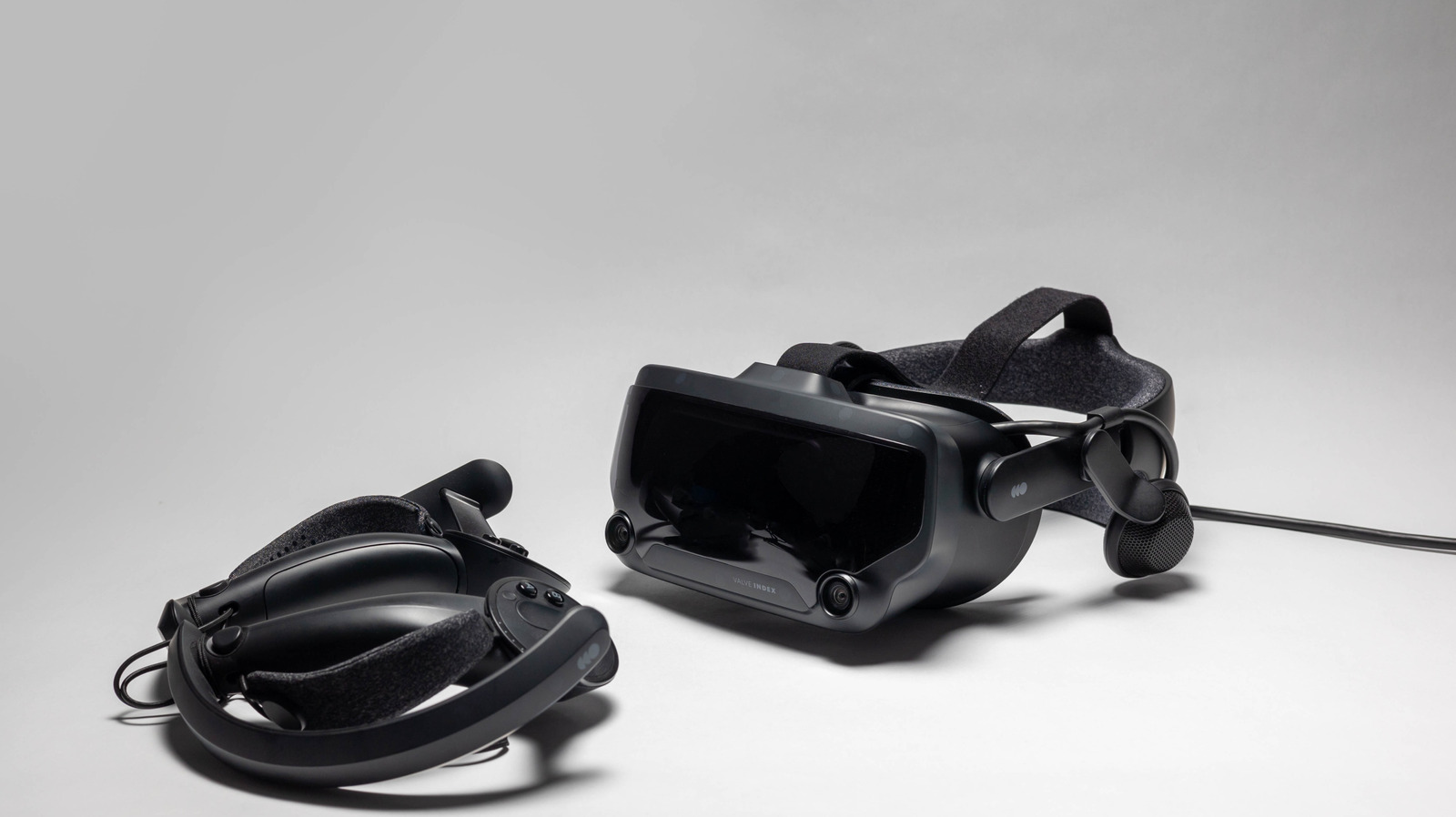
It only takes a few minutes to get things ready.
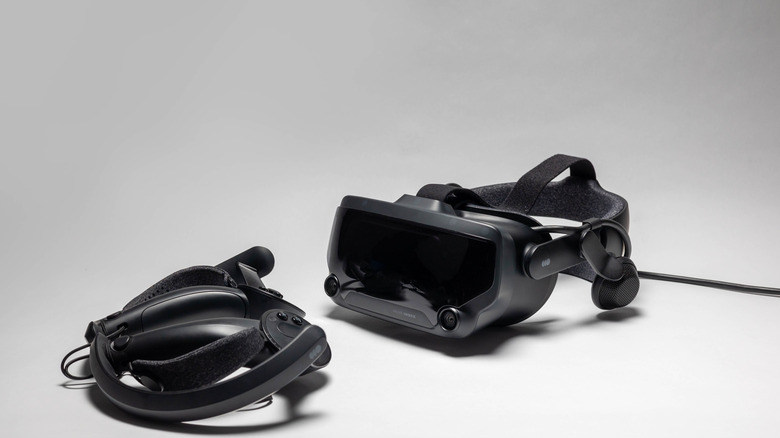
Valve’s Steam Frame VR headset is finally making its way to fans, albeit very slowly. Similar to its pre-order rollout for the Steam Machine, the company is once again opening pre-orders via a reservation lottery to reduce scalping. However, those who don’t want to wait for the $1000 Steam Frame can access VR on Steam right now — with the right hardware, of course.
Steam allows you to play VR games through its launcher via SteamVR, the app Steam uses to link up with VR headsets. This platform supports most headsets — including offerings from Valve, HTC, Meta/Oculus and many more.
It allows you to interface with VR games through the Steam launcher, as well as grant you access to both SteamVR Home and all the nifty settings inside the app’s dashboard. Getting all of this started up only requires a few simple steps, and you can follow a few more to take your VR experience to the next level.
Booting up SteamVR

If you have a Steam account, you’ll be able to simply search for SteamVR within Steam and install it for free. Once the application is installed, you can boot it right up and log into your Steam account if you’re not logged in already (unless you’re using the application offline).
To get the ball rolling from here, you’ll need to make sure your headset, controllers, and any other required sensors are all plugged into your PC. If you want to use a wireless connection, you’ll need to outfit your device with the Steam Link app — which is compatible with Meta Quest 2, Quest 3, and Quest Pro, as well as the HTC Vive Focus and PICO headsets.
If you’re starting fresh, there’ll be a little diagnostic work to complete before SteamVR can render your games and desktop in virtual reality. SteamVR will have you choose between Room-Scale or Standing Only space settings. It’ll have you prepare the space (about 6.5 by 5 feet), if you choose the former,before running you through headset and controller tracking to make sure everything is connected and ready to go. To keep an eye on the space available to you, you may also want to turn on the Chaperone system from within the Play Area tab in Settings.
SteamVR’s Home hub and VR settings

Before you boot anything up, you’ll notice that you’re within SteamVR Home, a digital hub where you can invite friends to chat and interact through avatars. You can also decorate the space with items purchased on Steam or unlocked through certain Steam achievements.
With a quick tap of the menu or system button on your controller, you’ll be able to pull up the dashboard. Here, you can browse Steam and choose VR-compatible titles to play from your library or new titles in the store, as well as fiddle with your VR settings. You can also pull up your computer desktop within virtual reality from this area.
Whether or not you’re rocking one of the best VR headsets available in 2026, SteamVR will allow you to keep tabs on all of your tech through its settings, some of which can get pretty advanced. By pushing the cog icon in the right corner of the dashboard (or by accessing settings via the Desktop button in the left corner), you can tweak things to your liking and open up not only the aforementioned Chaperone system, but all manner of brightness, resolution, and graphics toggles.
Here, you can also play around with more advanced settings, which include Motion Smoothing (moderating a game’s frame rate to reduce motion sickness), Controller Bindings, and Advanced Frame Timings (which shows you how individual VR apps perform).
Read the original article here